EpicKitchens-100 in LightlyStudio: From Video Clips to Searchable Embeddings
Learn how to preprocess EpicKitchens-100 video clips and load them into LightlyStudio with action captions and metadata. Explore 37K clips using embedding plots, text search, and diversity sampling.
Get Started with Lightly
Talk to Lightly’s computer vision team about your use case.
Thank you! Your submission has been received!
Oops! Something went wrong while submitting the form.
EpicKitchens dataset has gained popularity in the computer vision community for its rich annotations for a set of egocentric videos, designed to develop models for robotics-related tasks. In this blog post, we show how to preprocess the EpicKitchens dataset and visualize it in LightlyStudio.
At the end, we will have loaded and explored a dataset of more than 37000 video clips, each with a caption describing the action in the clip. We show how to explore the embedding plot and slice and dice the dataset for further analysis.
For a newcomer, the structure of the EpicKitchens dataset can be a bit overwhelming. In fact, EpicKitchens is a collection of datasets, each with its own structure and annotations, and different ways to access the data.
The main datasets with video recordings are:
EPIC-KITCHENS-55
55 hours of videos collected with a head-mounted GoPro camera by multiple participants in their kitchens
Video segments annotated with action labels (verb-noun pairs) and free-form captions
Moreover, separate, derived datasets annotating the data from EPIC-KITCHENS-100 are available, such as:
VISOR - Dense instance segmentation annotations
EPIC-Sounds - Audio annotations
EPIC-Fields - 3D digital twins
Downloading EPIC-KITCHENS-100
For our tutorial we focus on EPIC-KITCHENS-100 and download videos and annotated actions.
Note: You can skip the downloading and preprocessing steps if you are only interested in the final result. We uploaded it as the lightly-ai/epic-kitchens-100-clips dataset to HuggingFace (24GB).
Download Videos
The first obstacle is that EPIC-KITCHENS-55 videos and the extension part of EPIC-KITCHENS-100 are distributed separately. For simplicity, we focus on the extension part of EPIC-KITCHENS-100.
The videos are officially hosted on DataBris servers, but the mirrors are slow. Luckily, the extension dataset is also available via AcademicTorrents and HuggingFace, we are going to use the HuggingFace mirror:
After downloading, you should have the following folder structure. The videos are organized by participants P01 - P37, and each participant has a videos folder with the video files. The action annotations are in the epic-kitchens-100-annotations folder in EPIC_100_train.csv and EPIC_100_validation.csv files.
We cut the videos into clips, one for each annotated action. The annotations provide the start and end times of each action, an example annotation looks like this:
narration_id,participant_id,video_id,narration_timestamp,start_timestamp,stop_timestamp,start_frame,stop_frame,narration,verb,verb_class,noun,noun_class,all_nouns,all_noun_classes
P01_102_0,P01,P01_102,00:00:01.100,00:00:00.54,00:00:02.23,27,111,take knife and plate,take,0,knife,4,"['knife', 'plate']","[4, 2]"
We have let an AI assistant write a Python script which loads the annotations from the two files with pandas, and then calls ffmpeg to cut the clips from the videos. We also downsized the videos to 854x480px.
It expects the folder structure described above, and creates a clips folder with the cut clips, named by their narration ID, e.g. clips/P01/P01_102_0.mp4 for the example annotation above.
Note: For the 464 GB dataset of videos, the script ran for about 8.5 hours on a 47-core machine, not exhaustively using all cores. It created 37455 clips, with a total size of 24 GB.
See Lightly in Action
Curate and label data, fine-tune foundation models — all in one platform.
Now the difficult part is done, and we are ready to load the clips in LightlyStudio. First we install dependencies, we use pandas for loading annotations and tqdm for displaying progress:
Create a Python script load_clips.py with the following content:
import lightly_studio as ls
import pandas as pd
from tqdm import tqdm
# Load video clips into a LightlyStudio datasetdataset = ls.VideoDataset.load_or_create()
dataset.add_videos_from_path(path="./clips")
# Load narration CSVstrain_csv = pd.read_csv("./epic-kitchens-100-annotations/EPIC_100_train.csv")
val_csv = pd.read_csv("./epic-kitchens-100-annotations/EPIC_100_validation.csv")
file_name_to_row = {}
for _, row in pd.concat([train_csv, val_csv], ignore_index=True).iterrows():
filename = f"{row['narration_id']}.mp4" file_name_to_row[filename] = row.to_dict()
# Add metadata to each videofor video in tqdm(dataset, "Loading annotations"):
row = file_name_to_row[video.file_name]
# Add a caption video.add_caption(row["narration"])
# Add metadatafor key, value in row.items():
video.metadata[key] = value
# Start the LightlyStudio GUIls.start_gui()
We first create a video dataset and add the videos from the clips folder. Then we load the annotations from the two CSV files into a mapping from file name to CSV row. Finally, we loop through the videos in the dataset and add the narration column as the video caption, and populate video metadata with all the other columns from the CSV. Finally, we start the LightlyStudio GUI:
python load_clips.py
Once the data is loaded, it is persisted in the lightly_studio.db file. The GUI server can be safely stopped by pressing Ctrl+C in the terminal, and restarted by calling ls.start_gui() again:
python -c "import lightly_studio as ls; ls.start_gui()"
Note: Loading annotations one-by-one can be very slow. To process the whole dataset, we used a more optimised version of the script with bulk inserts. You can find it on HuggingFace.
Exploring EpicKitchens with LightlyStudio
Get a Quick Overview
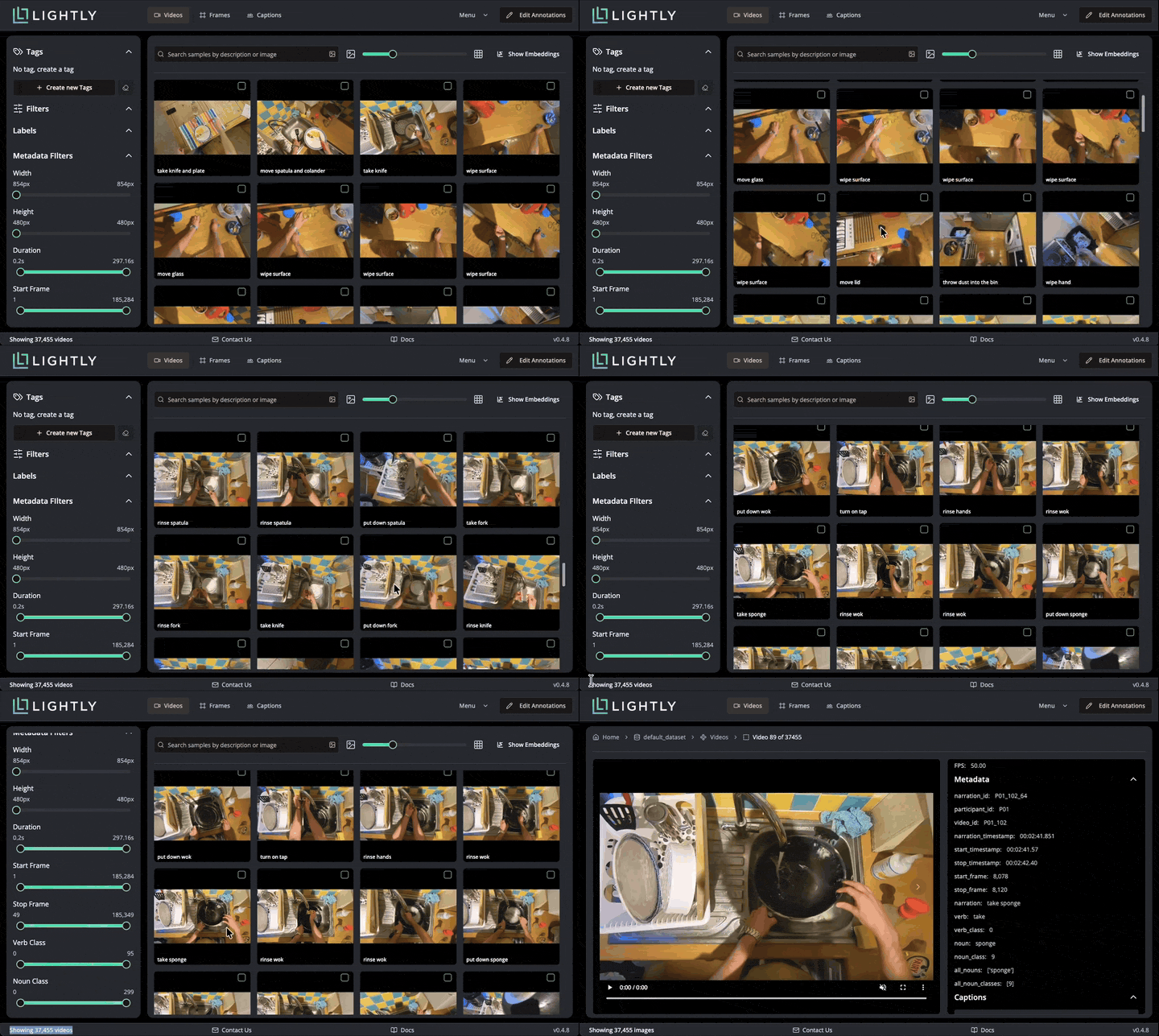
On the initial screen, we see a grid of all the videos together with their captions. The bottom left shows that we loaded 37455 videos. We can hover over each video to see it playing, and double-click to open the video details page. There we can see all metadata loaded from the CSV.
Captions can be also inspected in a dedicated tab, where long captions are displayed in full. If there were multiple captions per video, they would all be displayed here. Caption editing is supported.
Caption editing in LightlyStudio
Understand the Dataset
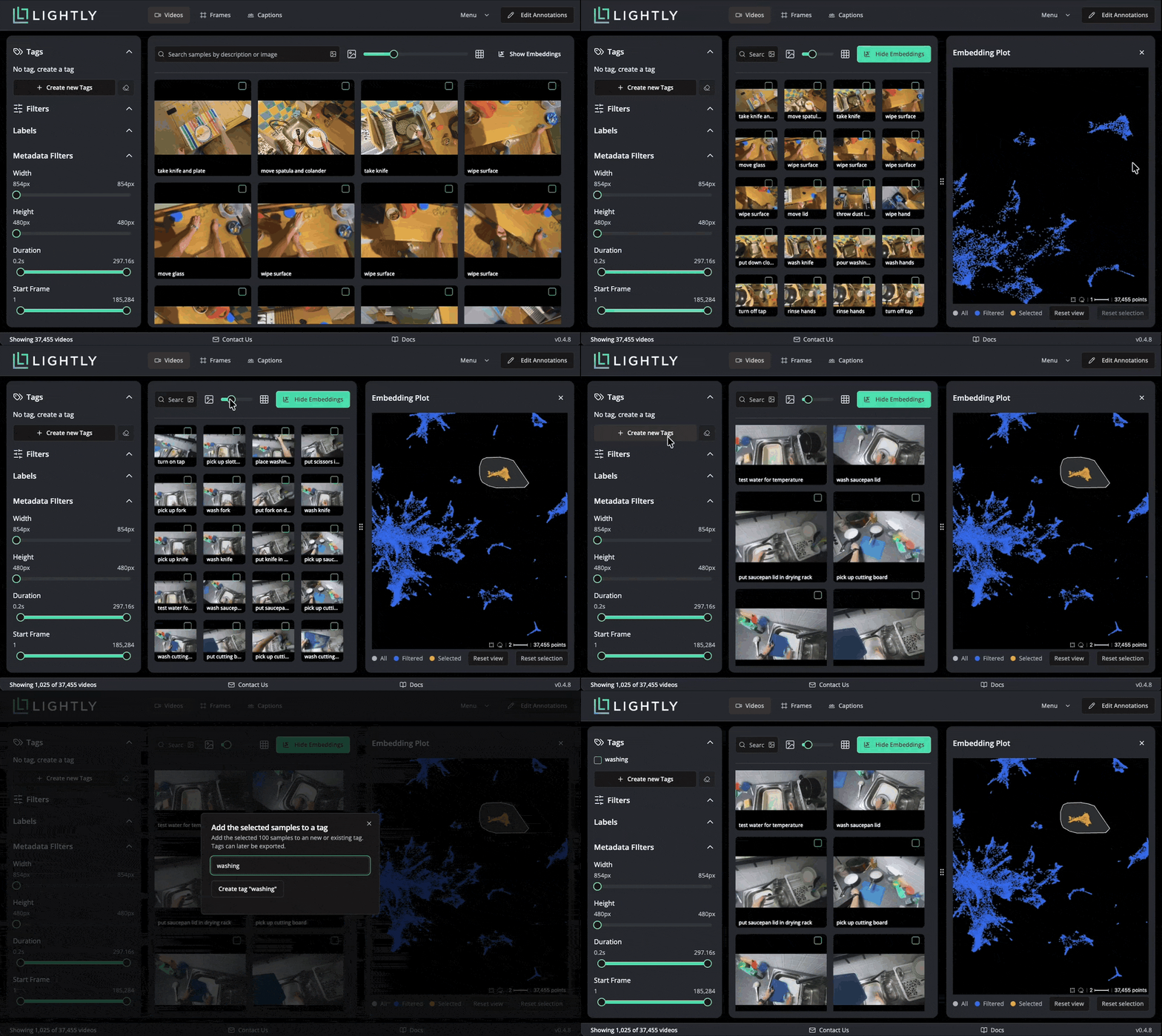
LightlyStudio computes embeddings with the Perception Encoder model for all the videos, so that they can be easily visualized and searched. In the embedding plot, which shows embeddings projected to 2D with PacMAP, we see that the videos are organized in clusters. We can lasso-select a cluster to see which videos are in it. Selected data can be easily tagged.
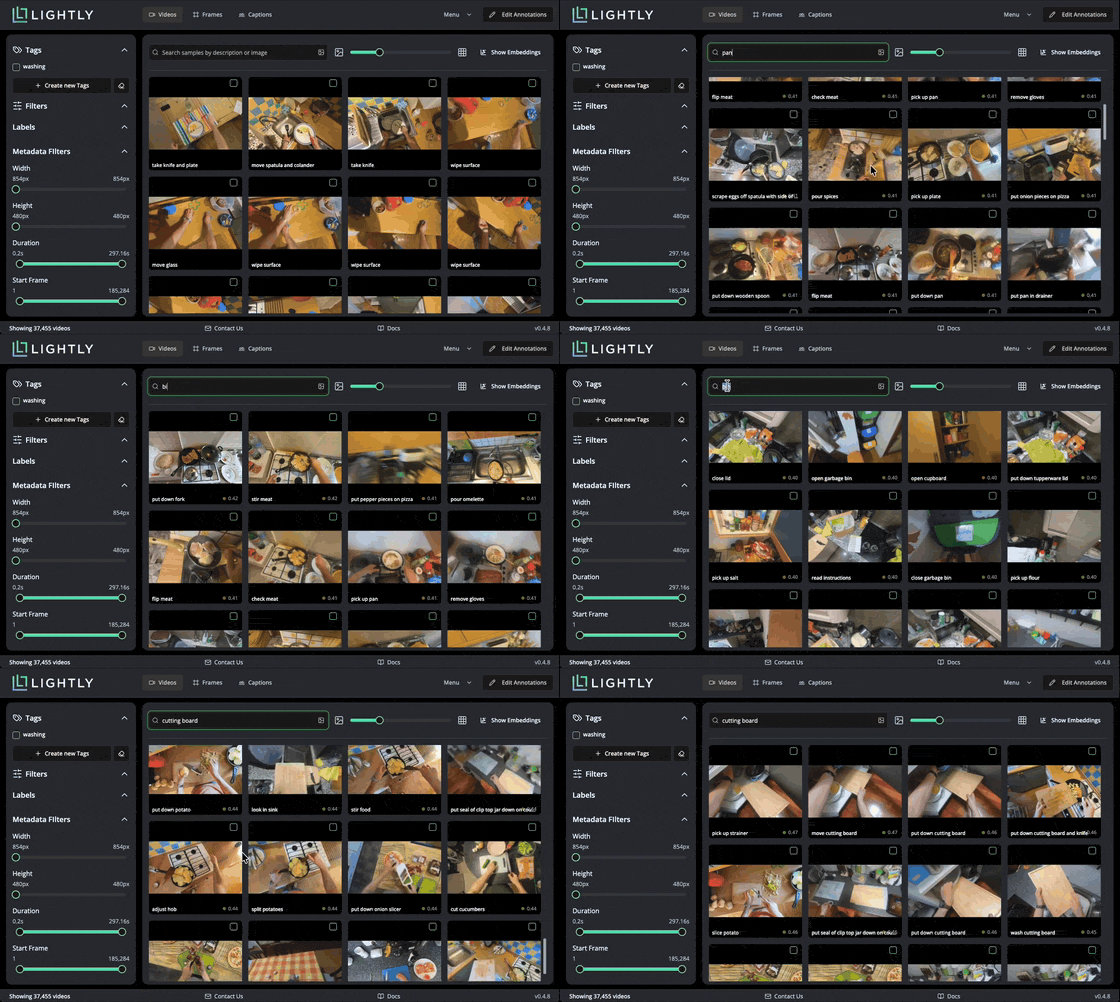
We can also use text search to find videos with specific content. When submitting a query, the text is embedded with Perception Encoder and compared with indexed video embeddings stored in a local database for high performance. You can notice the similarity score between zero and one shown for every video.
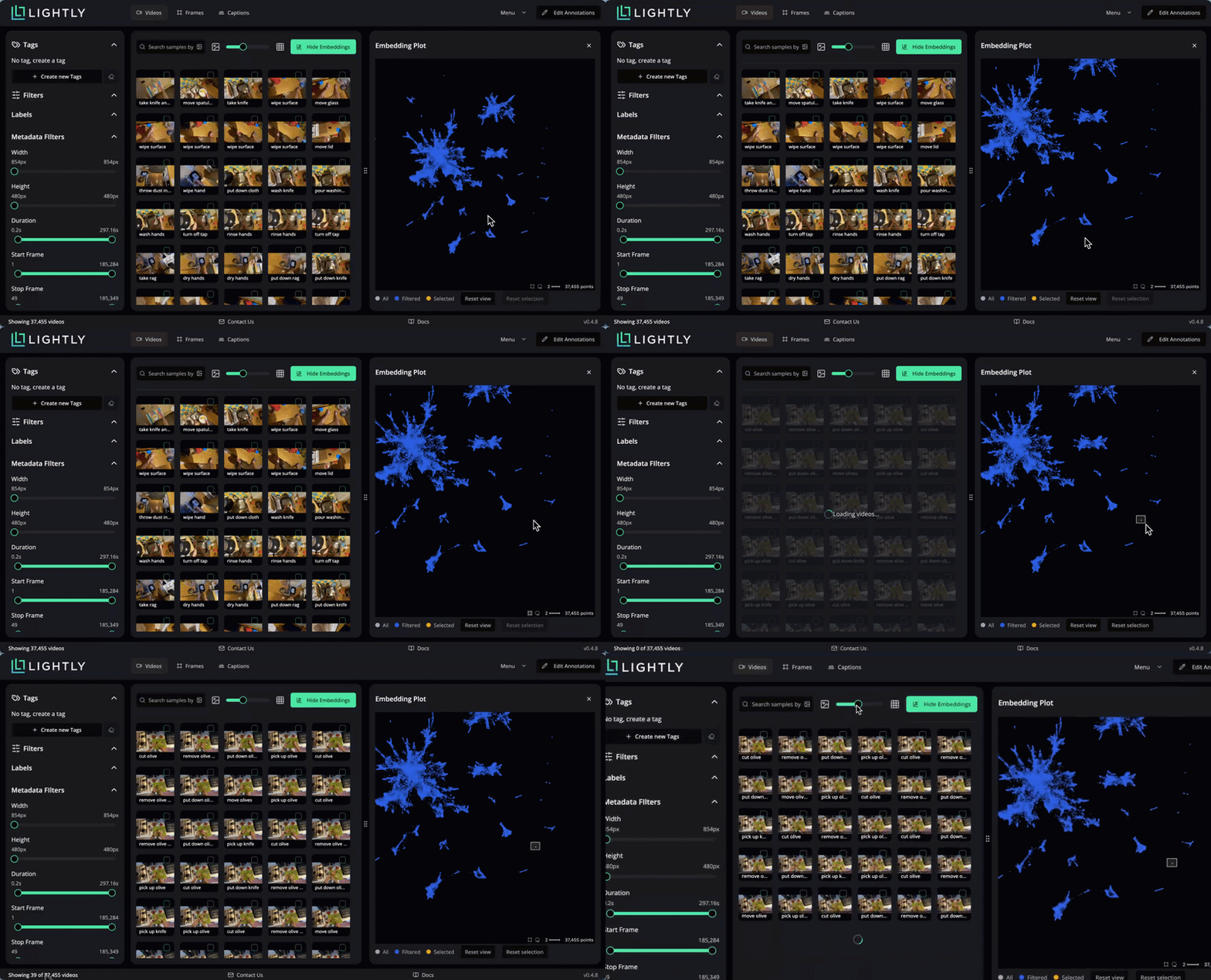
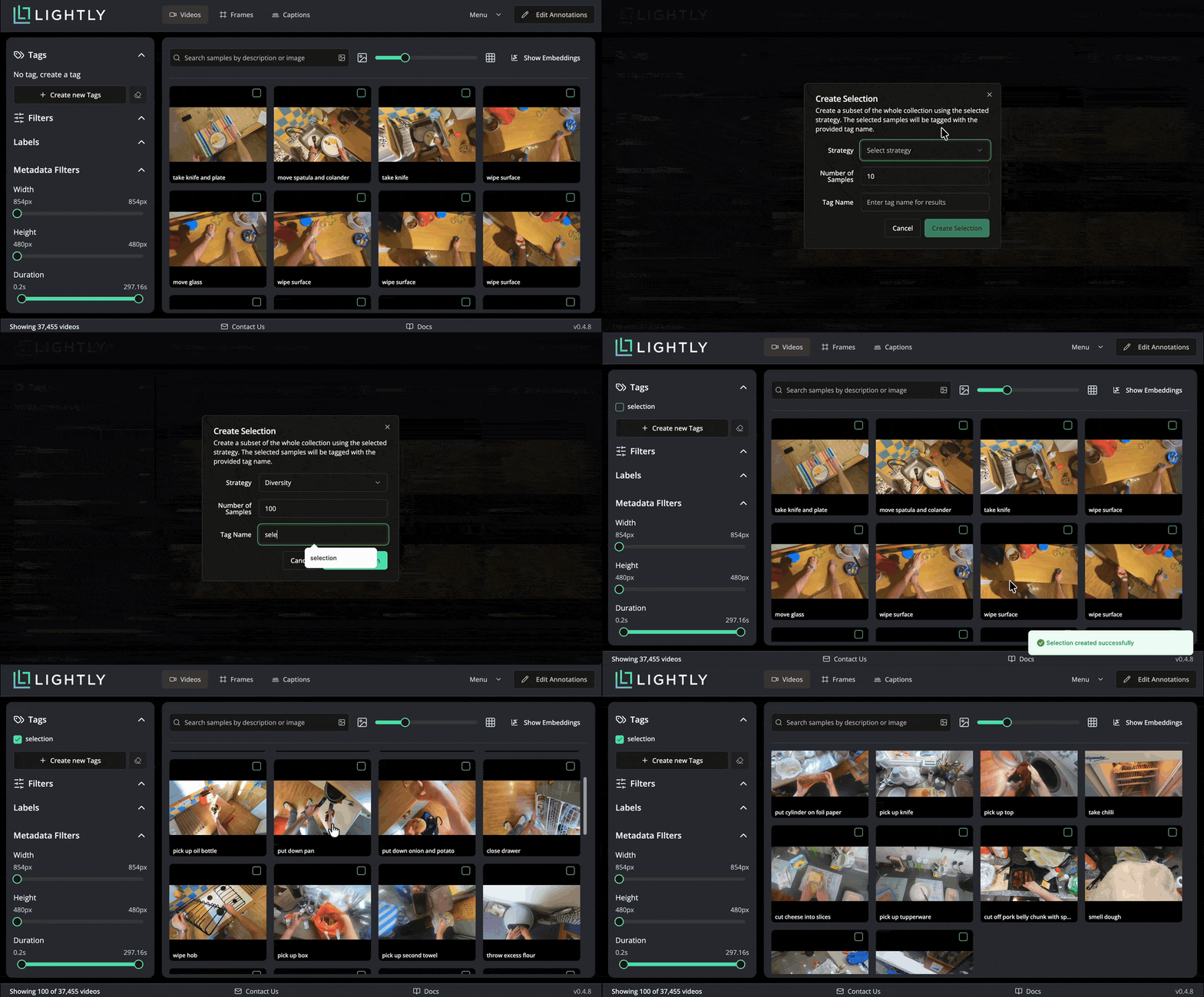
The dataset is quite big to scroll through fully. To get an overview of samples in it, we can use the “Selection” feature to get a smaller, representative sample. Navigate to Menu → Selection and choose 100 videos using the “Diversity” strategy. This performs the selection in Rust, selected images are tagged with a chosen tag. Note that the selection takes about one minute, we cut the waiting time from the gif below.
Conclusion
To summarise, we have shown how to:
Overcome the difficulties of loading the EPIC-KITCHENS-100 dataset
Preprocess the videos into clips corresponding to annotated actions
Load and explore the dataset in LightlyStudio
This only scratches the surface of the capabilities of LightlyStudio. To see how to edit captions, export the annotations, and more, check out our documentation at https://docs.lightly.ai/studio/ and stay tuned for more updates.
Get Started with Lightly
Talk to Lightly’s computer vision team about your use case.
Thank you! Your submission has been received!
Oops! Something went wrong while submitting the form.



.png)




.gif)

.png)
.svg)